
∙ Hold the side button and the top volume button. Keep holding until you hear a countdown sound.
∙ When the countdown ends, your iPhone will dial the phone number set as an emergency contact.
When you have an accident, your iPhone may also get hurt. The most common damage is a broken display. You won’t be able to see anything. Even if the display won’t be broken, it may become unresponsive.
Luckily, your iPhone comes with a feature that lets you dial 911 (or any other number set as emergency contact) by just pressing the buttons, so there is no need to use a display.
How to call an emergency number on an iPhone with a broken display
This feature is enabled by default, so all you need is remember how to activate it.

1. Press the side buttons and the top volume button. It’s the usual way to turn off the iPhone.
2. Keep holding the buttons. In a second or two, you will hear an emergency call alert – a very loud one, and very similar to the sound of an ambulance siren.
3. Keep holding until you hear the sound of dialing the number. It will be the first number you have added to Emergency Contacts in your Health App (keep reading to see how to do it).
How to deactivate emergency SOS calling on an iPhone
As I said, an emergency call operated solely by holding the buttons comes as a default setting, so it may happen that you call 911 by accident.
You can easily disable this feature in the Settings, but I strongly recommend keeping it – because of the reasons mentioned above.
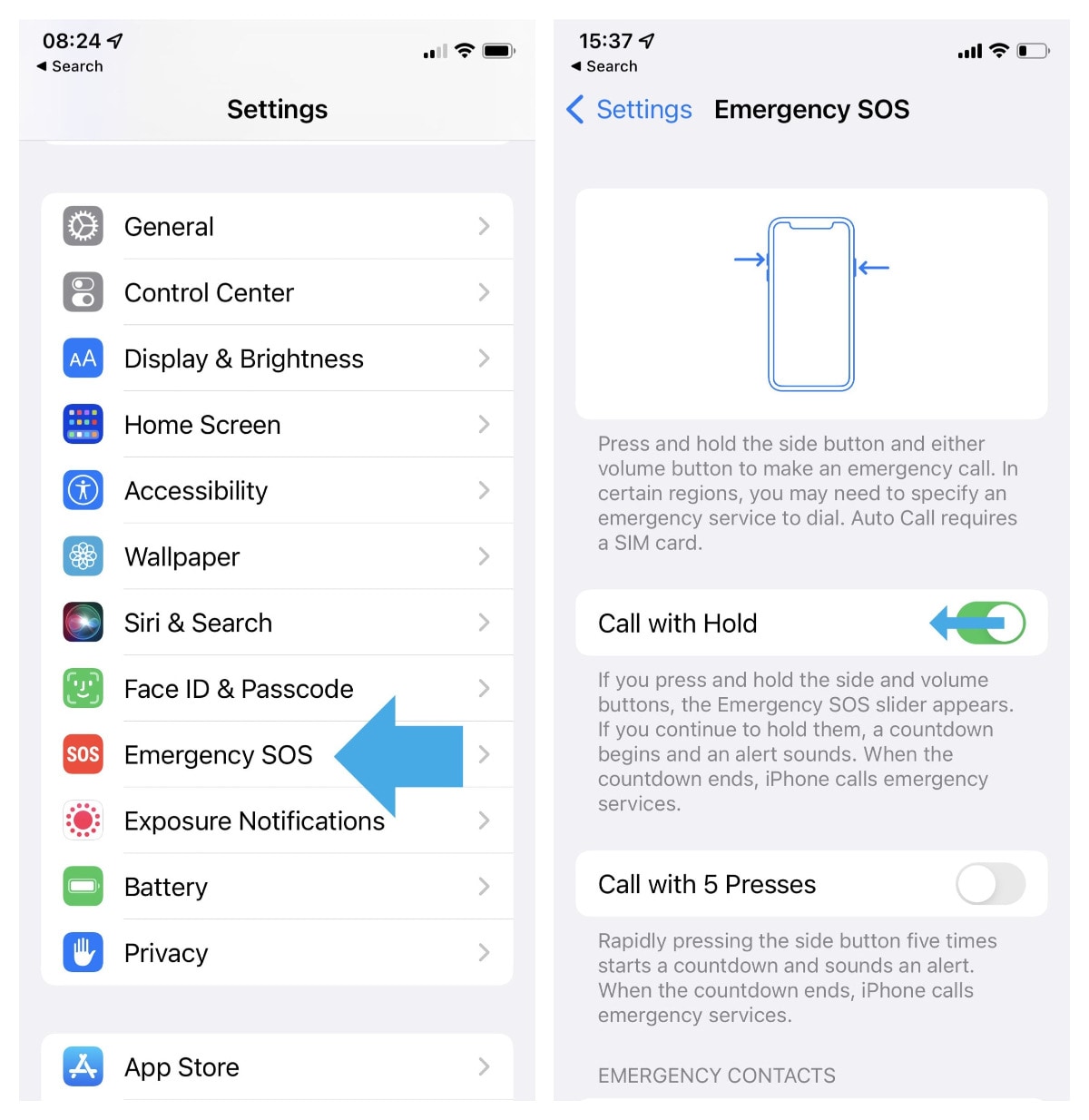
To turn off emergency calls on your iPhone:
1. Go to the Settings app, find “Emergency SOS” on the list, and tap it.
2. Disable “Call with Hold” setting. Done.
How to change the emergency calling trigger on an iPhone
Instead of disabling the emergency calling feature completely, you can replace it with the one that will let you avoid accidental use.

1. Go to the Settings app, find “Emergency SOS” on the list, and tap it.
2. Disable “Call with Hold” setting. Done.
3. Enable “Call with 5 Presses” setting.
From now on, you will be able to make emergency calls even if you can’t use the display, by quickly pressing the side button five times. Just the side button, there is no need to press the volume button in this method.
How to manage the list of emergency contacts on an iPhone
You can add more than one number to the list of emergency contacts. The methods described above will call the first number of the list.

1. Go to the Settings app, find the Health app on the list and tap it.
2. Tap the “Medical ID” section, and then the “Edit” button in the top right corner.
3. Scroll down to see the “Emergency Contacts” section and tap the green “+” button to add a new contact. To move down the contact that’s already there, remove it by tapping the red “-” button, and then add again after the contact you want to be the first.
• • •
Keep exploring. Here are other posts for iPad and iPhone users:
- These iPhone camo cases feature uncommon patterns, and come with textures for a more organic look. Great for military enthusiasts, […]
- Take a look at a handy infographic that lists the most famous artificial intelligence instances in pop culture.
- Take a look at tech quotes by Pablo Picasso, Douglas Adams, Stewart Brand, and Northrop Frye that are visualized on […]
- Are you looking for an iPhone case that you could personalize? Most items on the list are compatible with the […]
If you don’t want to miss future updates, make sure to enable email notifications in the comment box below. We are also waiting for you on WordPress Reader, Mastodon, Tumblr, and Facebook. You can also add us to your RSS feed.
If you buy an item via this post, we may get a small affiliate fee (details). We only use the cookies that are necessary to run this site properly (details).







 Geek Updated
Leave a Reply