
Kindle email is a special email address that you can use to send own ebooks to your Kindle. It’s automatically generated when you register a new device or app. Each device has a unique Kindle email address.
Kindle email, also called Send to Kindle email, is a popular feature that lets you add your own ebooks and digital files to your Amazon Kindle library.
Here is a roundup of facts and tips about it.
Kindle email – things to know

1. Kindle email is useful for everyone who reads lots of ebooks from other sources than Amazon, for instance, public domain books or third-party ebook platforms.
2. To add own ebooks to Kindle, open your email (such as Gmail), add ebook files as attachments, and select the Kindle email address as the recipient. There is no need to type a title or text.
3. You can send no more than 25 attachments in a single email, and a total size of the email should not be higher than 50 MB.
4. Please keep in mind that there may be also size limits in your email client. For instance, Gmail lets you send attachments no larger than 25 MB. For larger Kindle files, you may need to use other transfer methods.
5. Make sure to send files in compatible formats: epub, mobi (discontinued in 2022), txt, or pdf (the full list is available at the end of the list).
6. The files are converted to a native Kindle format. They should appear on your Kindle as well as in your Kindle Cloud Library within minutes. Your Kindle has to be connected to the internet to sync the content status and download the new ebook.
7. Each device registered with your Amazon account has its own unique email address. Thanks to that, you can send files directly to your Kindle or Amazon Kindle app on your iPad, Fire, or Android-powered device.
8. You can find and change each Kindle email address by going on your computer to Amazon » Account & Lists » Content & Devices. Then click “Preferences” and scroll down to see Personal Document Settings » Send-to-Kindle E-Mail Settings. For step-by-step guide visit this post: How to find Kindle email address.
9. You can also find the Kindle email directly on your Kindle or in a Kindle app. Go to Settings section and look for “Send-to-Kindle E-Mail Address” field.
10. Your Kindle will receive files only from your email – the email address associated with your Amazon account. You can authorize other email addresses. To add them, go to Personal Document Settings » Approved Personal Document E-mail List.
11. To make sure your Kindle is protected against spam, you can make your Kindle emails less obvious. Scroll down to see how the emails are being auto-generated.
Sending ebooks via Kindle email – compatible file formats
- MOBI (.AZW, .MOBI) (support ends in 2022)
- EPUB (.EPUB)
- Microsoft Word (.DOC, .DOCX)
- HTML (.HTML, .HTM)
- RTF (.RTF)
- Text (.TXT)
- JPEG (.JPEG, .JPG)
- GIF (.GIF)
- PNG (.PNG)
- BMP (.BMP)
- PDF (.PDF)
How your Kindle emails are being generated
There is a simple rule how a Kindle email is being constructed:
- The part after the “@” sign is being replaced by “kindle.com”.
- The part before the “@” sign is being followed by an underscore and a sequence of letters and digits.
For example, if your Amazon account email is:
myamazonmail@gmail.com
then an email address automatically generated for a new device added to your Kindle account would be something like this:
myamazonmail_43Da21@kindle.com
• • •
Keep exploring. Here are other tips and lists:
- These iPhone camo cases feature uncommon patterns, and come with textures for a more organic look. Great for military enthusiasts, […]
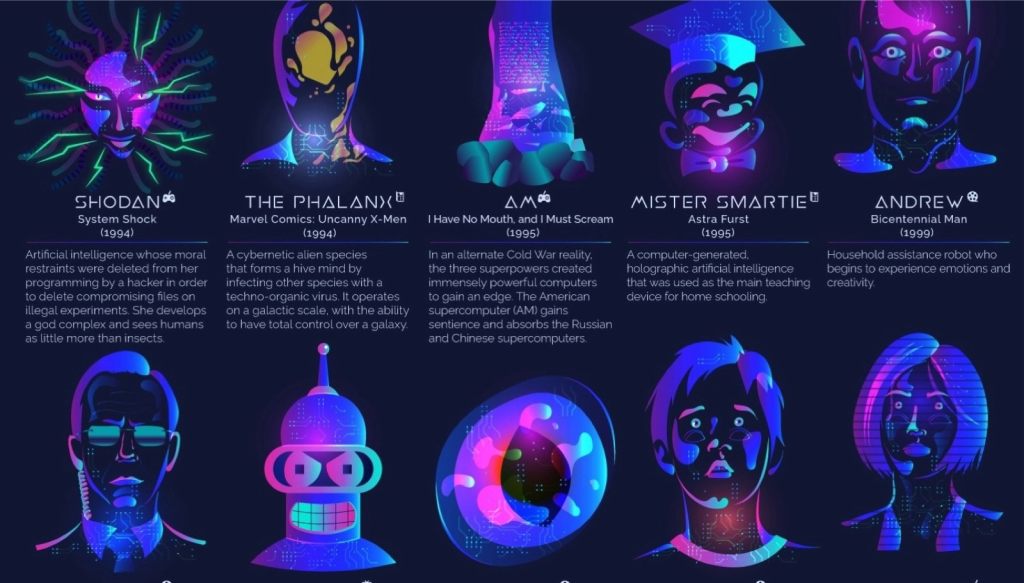
- Take a look at a handy infographic that lists the most famous artificial intelligence instances in pop culture.
- Take a look at tech quotes by Pablo Picasso, Douglas Adams, Stewart Brand, and Northrop Frye that are visualized on […]
- Are you looking for an iPhone case that you could personalize? Most items on the list are compatible with the […]
If you don’t want to miss future updates, make sure to enable email notifications in the comment box below. We are also waiting for you on WordPress Reader, Mastodon, Tumblr, and Facebook. You can also add us to your RSS feed.
If you buy an item via this post, we may get a small affiliate fee (details). We only use the cookies that are necessary to run this site properly (details).





 Geek Updated
Leave a reply to How to read bionic books on iPad and iPhone Cancel reply