
Google is now turning Calendar reminders into tasks. Learn about essential changes and make sure to keep your notifications.
Overlapping features in Google Calendar, Tasks, and Keep are a source of ongoing frustration. Creating and managing tasks, to-do lists, and reminders is a particularly difficult challenge. Some problems are about to disappear.
Google is right now rolling out the Calendar upgrade, which was announced back in September 2022. It turns the reminders into tasks.
When you click on the Reminders checkbox in the Calendar sidebar, you will see the following alert window “Soon reminders will be upgraded to tasks”.
You can turn the upgrade immediately, by clicking on the blue link saying “Turn my reminders into tasks now”. If you do so, an alert window will show up with the number of reminders to replace and the details of the upgrade.

Be careful. There is no the other way around – you won’t be able to keep the reminders. The upgrade will be rolled out to all Google accounts eventually.
The change will affect the way your notifications are delivered. Furthermore, some reminders will be kept separately.
Reminders in Google services – the background
▸ So far, you were able to create a reminder in Google Calendar and Google Keep.
▸ The reminders created in Google Keep also appeared in the Calendar. But the reminders created in the Calendar didn’t appear in the Keep.
▸ In the Calendar, you could also create tasks, which were showing up in Google Tasks.
▸ The tasks and reminders in the Calendar serve the same purpose – to help you accomplish goals and manage them in a dynamic timeframe.
▸ Both reminders and tasks are not searchable in the Calendar. If you search for something, only events will show up on a list of matching results.
▸ An essential thing to keep in mind is about notifications, especially the repeating ones.
– Notifications for reminders created in the Calendar are being sent by the Calendar app.
– Notifications for reminders created in the Keep service are being sent by the Keep app.
Upgrading Google Calendar reminders to tasks – things to keep in mind
▸ The Calendar update affects only the reminders created in the Calendar. These reminders become tasks with the same due date and time.
▸ Once you complete the upgrade, there is no way back. When you refresh the Calendar tab in your browser, the Reminders checkbox is gone from a sidebar.
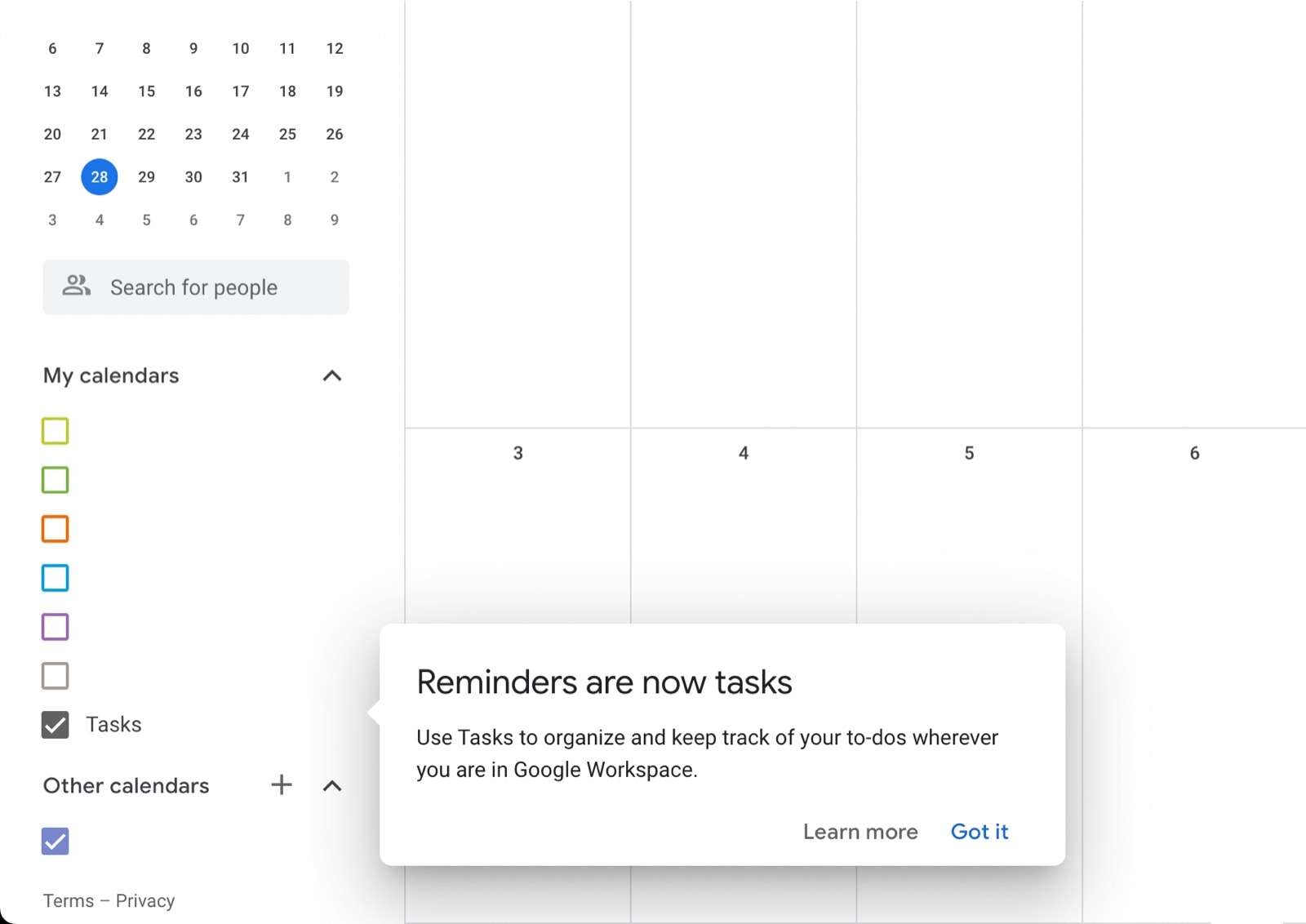
▸ From now on, you can only create events or tasks. The tasks you have created in the Calendar are also visible in your Google Tasks mobile app (if you use it).
▸ The reminders you have created in the Keep will no longer appear in the Calendar. Don’t worry, these reminders will still be available in your Keep app.
▸ To see the remaining Keep reminders, go to the Keep app on your smartphone or open the Keep web application and select the Reminders tab on the left side. Please note that after the upgrade, it may take a few seconds to load the reminders.
Google Calendar reminders removal – how to keep the notifications
▸ When it comes to notifications, the tasks created in the Calendar work the same way as before. They fire up notifications at the due date and time.
▸ There is no need to use Google Tasks. Task notifications are sent by the Calendar app. I have tested it on a couple of tasks, and each one triggered the Calendar app to send a push notification.
▸ The removal of Google Calendar reminders may prompt you to decide it’s now the tasks to handle all your goals and to-do lists. It’s actually what Google wants you to do.
▸ If you have upcoming reminders in your Keep app, don’t disable notifications and don’t remove the app. It is the only tool to send you notifications at the due date and time.
▸ I recommend simplifying the task management. It’s what I have done. I have had a few reminders left in my Keep app, so I have created mirror tasks in my Calendar app before removing the Keep reminders. This way, my Calendar is now the only app to send me the notifications.
• • •
Keep exploring. Here are other tips and how-to posts:
- These iPhone camo cases feature uncommon patterns, and come with textures for a more organic look. Great for military enthusiasts, […]
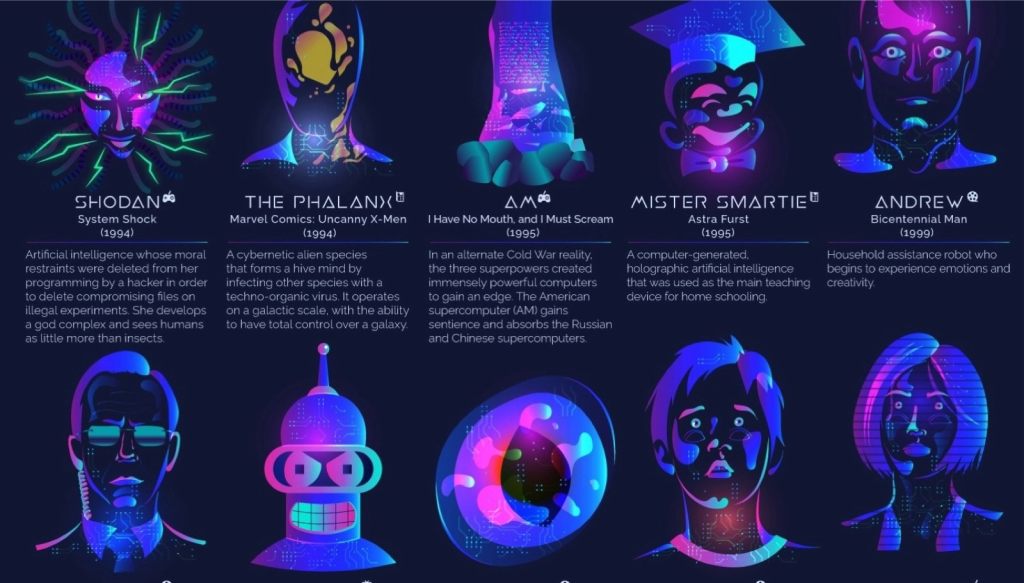
- Take a look at a handy infographic that lists the most famous artificial intelligence instances in pop culture.
- Take a look at tech quotes by Pablo Picasso, Douglas Adams, Stewart Brand, and Northrop Frye that are visualized on […]
- Are you looking for an iPhone case that you could personalize? Most items on the list are compatible with the […]
If you don’t want to miss future updates, make sure to enable email notifications in the comment box below. We are also waiting for you on WordPress Reader, Mastodon, Tumblr, and Facebook. You can also add us to your RSS feed.
If you buy an item via this post, we may get a small affiliate fee (details). We only use the cookies that are necessary to run this site properly (details).


 Geek Updated
Leave a Reply