
1. Use a shortcut Command+D or click “Bookmarks” in a top menu and select “Add Bookmark…”.
2. In a dialog box, make sure to select “Favorites” under “Add this page to”.
Favorites in Safari for Mac – the problem
- Managing bookmarks in Safari browser for Mac computer is not intuitive.
- In other browsers, all saved pages are called “bookmarks”. In the Safari, bookmarks are split into “Favorites” and “Reading List.” You can access them in a left-side panel.
- Despite the misleading naming, managing added pages is similar to other browsers. You just have to use a common keyboard shortcut – Command+D.
What are Favorites in Safari browser?
Favorites are saved pages that you can quickly access in two ways:
- When you open Start Page – a new tab or window, also in a private mode.
- When you click on a search field on the top.
How to add a page to Favorites in Safari for Mac
1. Find a page that you want to favorite.
2. Use a shortcut Command+D. Alternatively, you can open “Bookmarks” in the main menu, and then select “Add Bookmark…”.
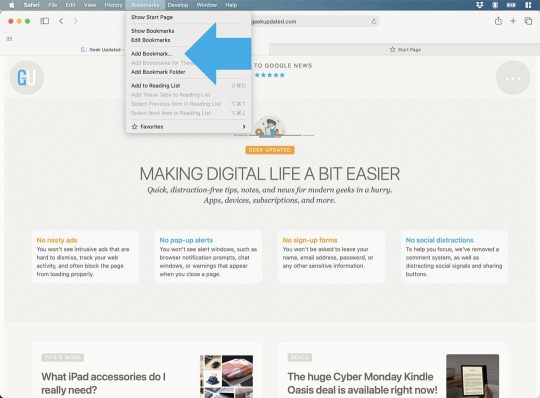
3. A dialog box will appear. By default, under the line saying “Add this page to” a row saying ⭐️ Favorites should appear. If not, click on a drop-down list and select it.

4. Click on an “Add” button. From now on, you can quickly access the page from a search field and new tab / window.
• • •
Keep exploring. Here are other tips and how-to guides:
[gu-archive number=5 tag=”tips”]







 Geek Updated
Leave a Reply