1. Google Chrome browser comes with a handy feature that cleans websites from sidebars and ads. 2. You can enable Reader Mode by clicking on an icon in an Omnibox.
Background
For a long time, the Reader Mode was an experimental Chrome feature that users could activate by going to Chrome flags.
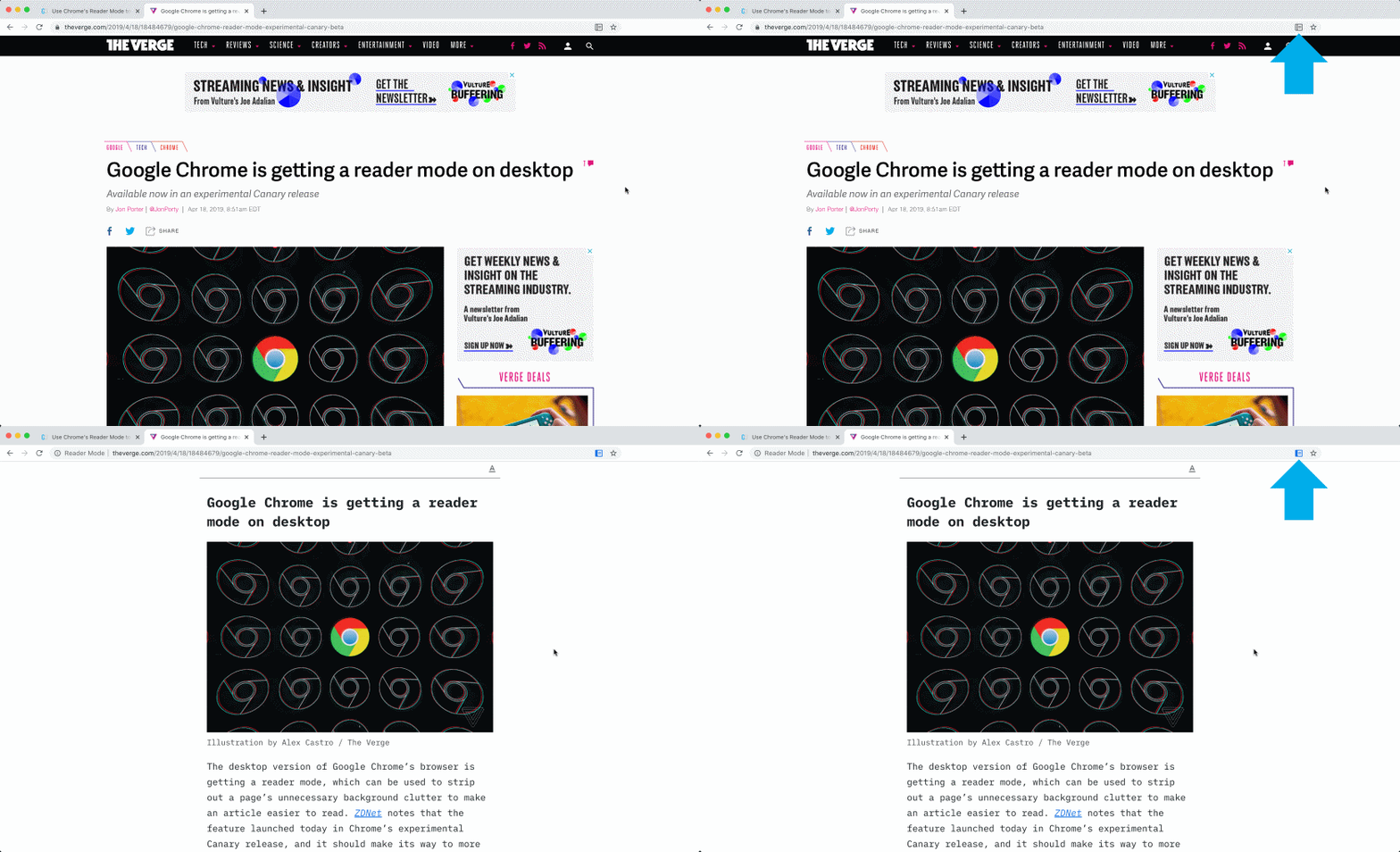
Right now all users can use Reader Mode without changing anything – and with just one click.
How to enable and use Reader Mode in Chrome browser
1. When you visit a website and want to read an article in a clean interface, simply click on a special icon placed on the right side of Omnibox.
2. You can change:
Font size – 10 levels.
Font face – sans-serif, serif, and mono – these font faces are the same as in Chrome’s main settings.
Background color: white, sepia, and black.
3. Once you set your preferences, they are being kept even after you restart the browser.
4. Reader Mode works also in Incognito Mode.
5. To disable the Reader Mode, simply click on the icon again.
Another way to enable and disable the Reader Mode in Google Chrome is to click on the three-dot menu in the top-right corner and select the option “Enter Reader Mode.”
Please note that the feature may not work on some sites. In this case, you won’t see the dedicated icon in the Omnibox.
Benefits of using Reader Mode in Google Chrome
It’s a replacement of ad blockers.
It lets you focus on reading the main article.
It’s a way to read web content right away instead of saving it for later (which sometimes mean you will never read it).
It removes elements of the page that may distract you: sidebars, banners, inserted blocks, announcements, or alerts.
It lets you copy the text without extra styling.
• • •
Keep exploring. Here are other tips and how-to guides:
Take a look at a handy infographic that lists the most famous artificial intelligence instances in pop culture.
Start Reading
Big Magic: Creative Living Beyond Fear
by ELIZABETH GILBERT
Once upon a time, there was a man named Jack Gilbert, who was not related to me – unfortunately for me.
Jack Gilbert was a great poet, but if you’ve never heard of him, don’t worry about it. It’s not your fault. He never much cared about being known. But I knew about him, and I loved him dearly from a respectful distance, so let me tell you about him.
Jack Gilbert was born in Pittsburgh in 1925 and grew up in the midst of that city’s smoke, noise, and industry. He worked in factories and steel mills as a young man, but was called from an early age to write poetry. He answered the call without hesitation. He became a poet the way other men become monks: as a devotional practice, as an act of love, and as a lifelong commitment to the search for grace and transcendence. I think this is probably a very good way to become a poet. Or to become anything, really, that calls to your heart and brings you to life.
Revolution Begins Update All Apps Funny T-shirt for Geeks – Time to start a revolution, comrades! Wait, I need to finish one more thing. This propaganda style artwork says: “The revolution begins as soon as I update all my apps”.








 Geek Updated
Leave a Reply